How to update the BIOS on the Stonebook Pro, Lite, 14a, and any other Insyde BIOS based Stone models, using the EFI shell.
Prerequisites
-
Ensure the device is plugged into AC power.
-
Confirm the target BIOS image is correct.
-
Backup critical data if needed (BIOS flashing is low-risk but precautionary).
-
Identify current BIOS version if audit logging is required.
-
If BitLocker is enabled, it's critical to suspend protection before performing a BIOS update. This prevents the system from triggering recovery mode due to firmware changes. You can suspend BitLocker using either of the following methods.
-
Bitlocker suspension option A: Using Control Panel
1. Open Control Panel.
2. Navigate to System and Security > BitLocker Drive Encryption.
3. Click Suspend Protection next to the encrypted drive.
4. Confirm when prompted.
-
Bitlocker suspension option B: Using the following PowerShell command
Suspend-BitLocker -MountPoint "C:" -RebootCount 1
This suspends protection for one reboot cycle.
1. USB Preparation
- Download the relevant BIOS from the Converge driver finder here - Link
- Download the EFI boot files attached here - Link
- Format a USB stick as FAT32.
- Copy the downloaded files onto the USB stick retaining the same file structure.
- The folder structure should look like this:
USB Root
|── EFI
| └── BOOT
| └──Shellx64.efi, bootx64.efi.
Downloaded BIOS files should be placed on the root.
2. Disable Secureboot
Access the BIOS by pressing the F2 key immediately after powering on the system and disable secureboot.
To Disable Secure Boot on the Stonebook Pro ;
1. Enter BIOS Setup
• Power on the system and immediately press the F2 key to access the BIOS.
2. Navigate to Administer Secure Boot
• Ensure secure boot is set to disabled.
• Press F10 to save and exit BIOS menu
3. Flashing the BIOS
Once you have disabled secureboot, restart your notebook and press F7 during startup to open the Boot Menu. From the list, select your USB device to boot.
The system will boot into the EFI Shell, which will display all storage devices detected in the UEFI environment. Identify the file system (FS) entry corresponding to your USB drive — it will appear as a removable hard disk, typically labelled FS3 on Stonebook systems.
.PNG)
Type FSX: to switch to the USB drive, where X is the file‑system number assigned to your pen drive (for example, FS3:). Make sure you include the colon after the number, it won’t work without it!
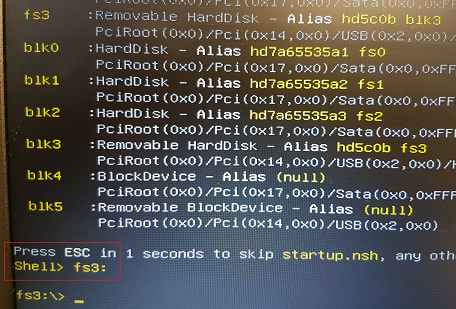
Note that the shell prompt changes to confirm that the new drive has been selected
Type flash.nsh (or flashme.nsh, depending on which file is included in the BIOS package). The system will begin updating the BIOS immediately.
Once the flash completes, the machine will either shut down or restart automatically. Some models can take up to three minutes before they power back on, and may reboot several times while the new firmware initialises.
Don’t interrupt it — this behaviour is normal during a Stonebook BIOS update.
Note: Do not remove the AC Adapter whilst the BIOS update is in progress, as this could render the battery or machine unusable.
Applies to:
- All Stonebooks that utilise an Insyde based BIOS.


