To ensure optimal performance and long-term reliability of your Stonebook Edge-R device, a critical firmware update is now available.
This update addresses system stability improvements.
Why This Update Is Important
The latest firmware version includes targeted fixes and enhancements designed to alert and mitigate potential isolated system behaviours in field deployments.
Key improvements include:
Enhanced power management to mitigate rare anomalies during sleep/modern-standby/hibernate/off power modes.
Improved USB stack handling to detect and improve control of rare peripheral anomalies during active mode.
These changes are part of our ongoing commitment to deliver a robust and reliable computing experience, especially in environments where uptime, predictability and longevity are critical.
Who Should Apply This Update
All owners/users of the Stonebook Edge-R devices are strongly encouraged to apply this update.
How to Update
Prerequisites (Applies to all methods)
Ensure the device is plugged into AC power, updates will not proceed while the device is using battery power.
Confirm the target BIOS image is correct, it should be version SP41MD103_STE_V15.bin or later.
Backup critical data if needed (BIOS flashing is low-risk but precautionary).
Identify current BIOS version if audit logging is required.
Suspend BitLocker is enabled.
Warning: If Microsoft BitLocker is enabled on your device, you must suspend it before applying the firmware update to avoid being locked out of your device by BitLocker recovery mode. It is also recommended that you verify your BitLocker recovery key is stored safely on removable media, stored in your Microsoft account, or Stored in the domain account provided by your employer / education institution.
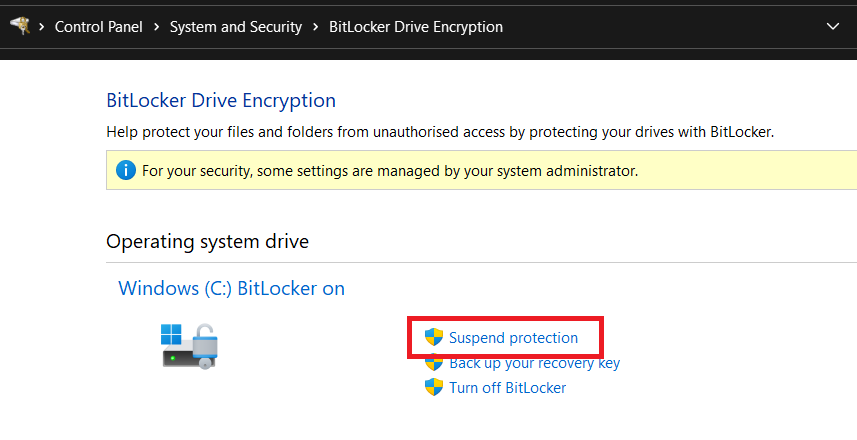
Press the Windows key, type "Manage BitLocker", then press the Enter key.
Within the new BitLocker Drive Encryption window which appears, you can see the status of BitLocker.
Select 'Suspend Protection'.
Note: After the firmware update has been successfully applied using one of the methods described in the next section, return to the BitLocker Drive Encryption screen to Enable Protection agaim.
PowerShell
Press the Windows key, type "Powershell" and run as Administrator.
In the Administrator PowerShell window type the following command and press the Enter key.
Power on the system and immediately press the DEL key to access the BIOS.
Navigate to Secure Boot Settings
Go to the Security tab.
Scroll down and select Secure Boot Menu.
Modify Secure Boot Configuration
Set Secure Boot Mode to Custom.
Then, disable Secure Boot.
Save changes and Exit/Reboot
Flashing the BIOS
Once you have disabled secureboot, restart your notebook with the USB stick connected and press F7 during start-up to open the Boot Menu.
From the boot drive list, select your USB stick to boot from it.
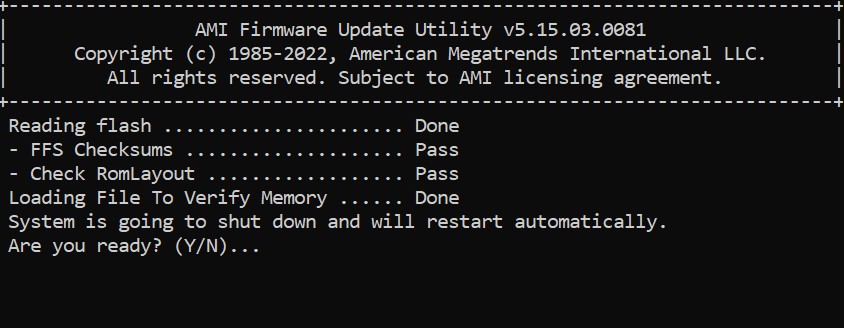
From this point flashing process will begin automatically - when prompted, simply press the Y Key to confirm and continue, or the N key to cancel.
Wait until the notebook has completed the flashing process.
Access the BIOS menu again to re-enable secureboot, save the new changes and exit.
Note: Do not remove the AC Adapter whilst the BIOS update is in progress, as this could render the battery or machine unusable.
2: Windows runtime update
This method is initiated from a Windows operating system using a supplied flash utility and automated script file.
Download the Windows based flash tool from the Driver Finder - Link
Extract the zip file to local storage on the device which is to be updated.
Run the flash.bat file as an administrator, this will start the flash process.
You will receive the following "Are you ready" prompt, press the 'Y' key to begin, or the 'N' key to cancel.
The device will automatically reboot and the flashing process will continue with no further user input required.
Note: The device will reboot in between flashing processes before finally before shutting down. It's essential that you do not interrupt the process.
3: Microsoft Intune application
This method provides an Intune application that can be targeted at compatible devices and will automatically suspend BitLocker and apply the update.
It is intended exclusively for use by those who are familiar with managing devices, groups and applications in Microsoft Intune.
Download the package from our Driver Finder - Link
Extract the files contained within the zip.
Read through the documentation provided, which covers the function of the application and how to implement it.
4: Windows Update
The firmware is offered via Windows Update for eligible systems.
To check if the firmware is available for your device:
Open Windows Settings, press the Windows key + I simultaneously on your keyboard. Alternatively, press the Windows key, type "Settings", and press the Enter key.
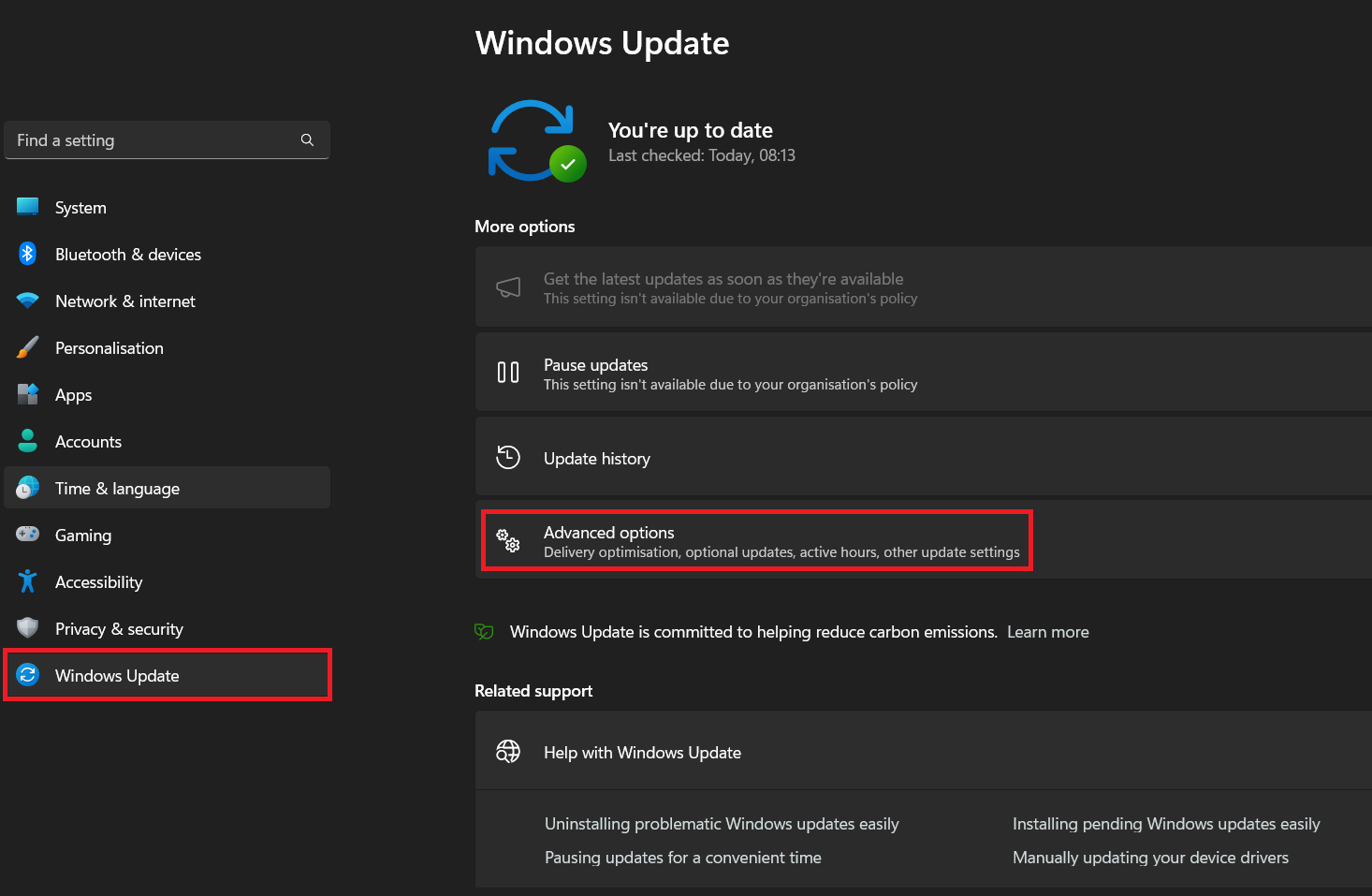
In Settings, select Windows Update from the left hand menu, followed by Advanced Options.
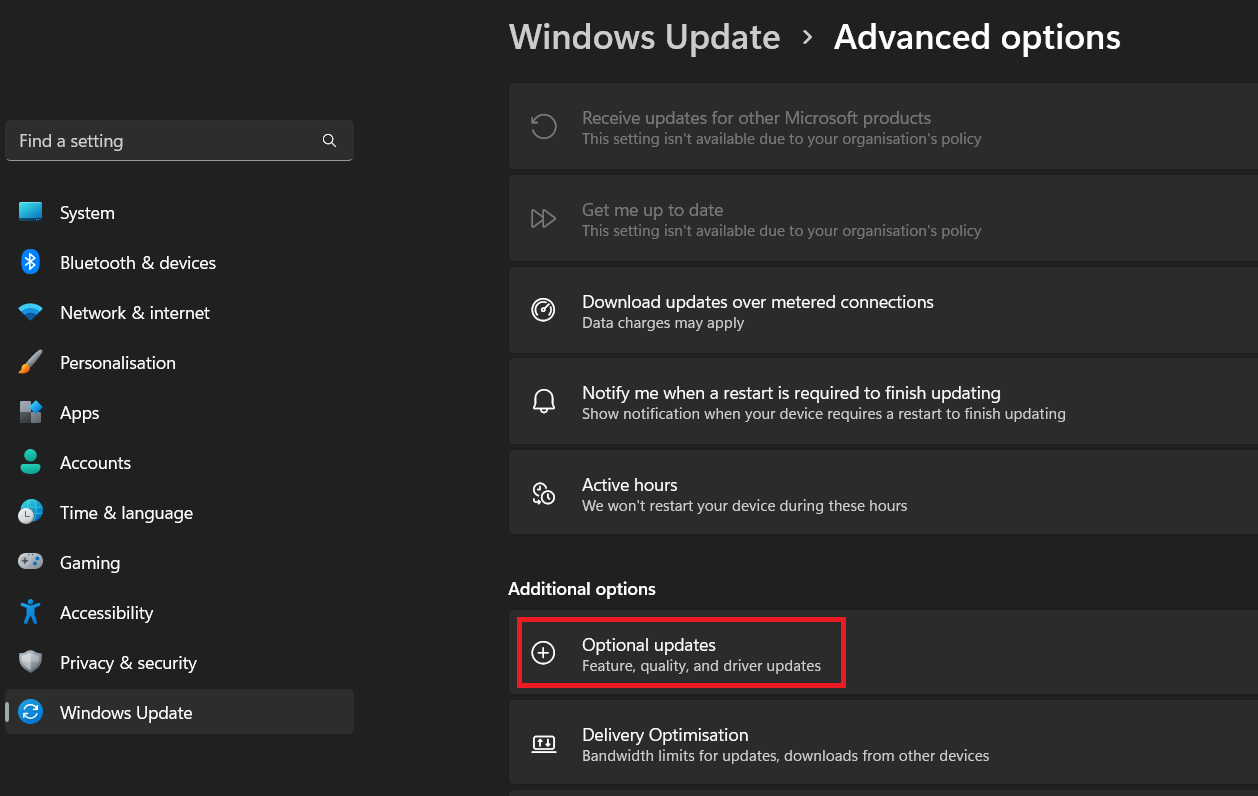
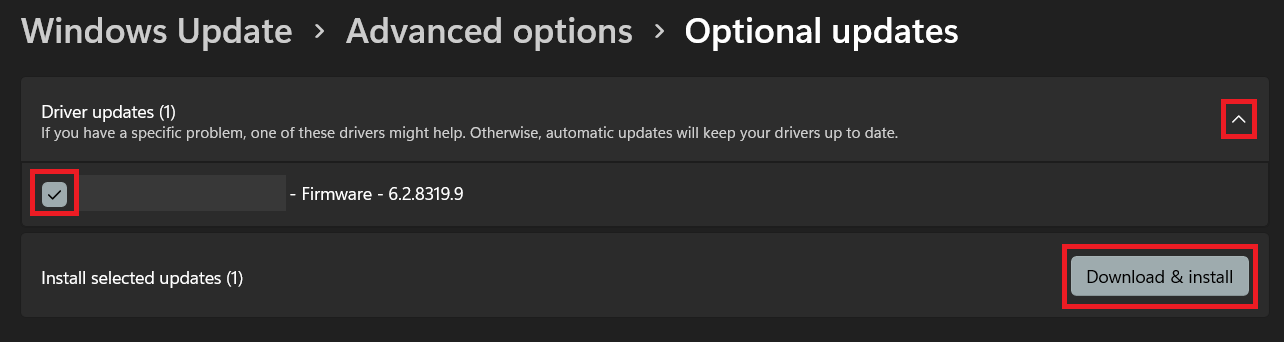
Now select Optional Updates.
Expand the Driver Updates section, and here you will see a firmware update listed if available. Click on the checkbox next to the corresponding firmware update and choose Download & Install.
Windows will download and install the firmware package and prompt you to restart your device.
During the restart process the device will take over and apply the firmware update, do not interrupt, turn off the device, or disconnect the AC power during this phase. the device may reboot multiple times.
Once complete, the device will boot back into Windows.